Model Legacy Texture Creation
Part1: Texture Preparation
In this section I will show some methods of creating indexed BMP texture conversion. Ill start with Photoshop but if you are using another program I have an alternative method that works for all others.
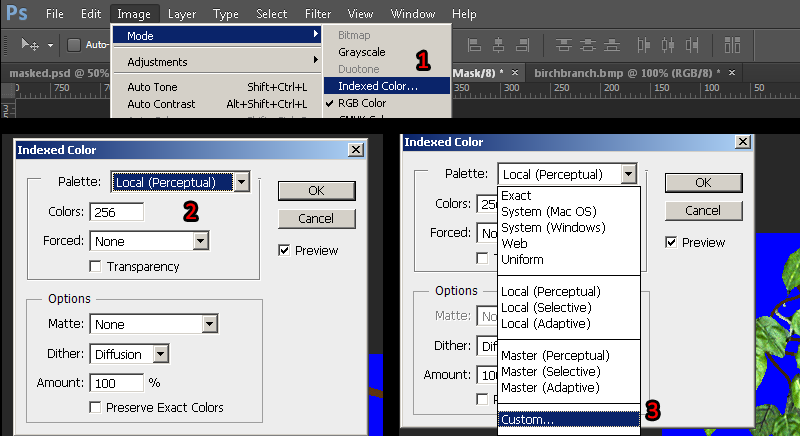
1) To convert the texture to indexed color by going to mode> Index.. and set to any of the "local" palettes (perceptual, selective, and adaptive*). Preview the image. If your image has gradients than start to get a "banding effect", you can lessen these harsh edges by using the Dithering option. Dithering scatters pixels between transitions to make them somewhat smoother.
*Adaptive algorithm reproduces colors most often in image, Perceptual takes spectrum priority of the eye, Selective favors colors that appear in large areas and graphics.
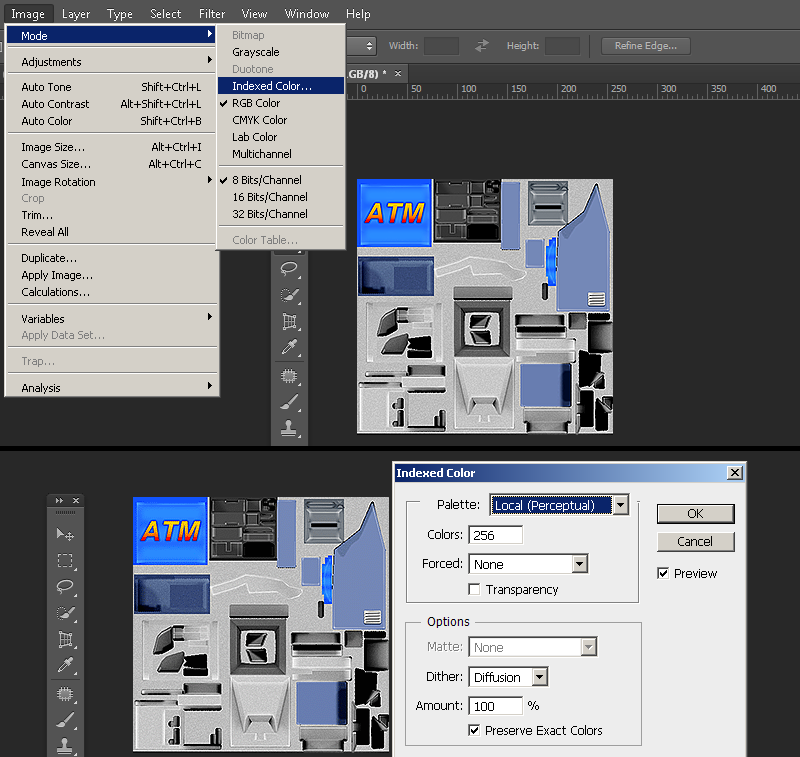
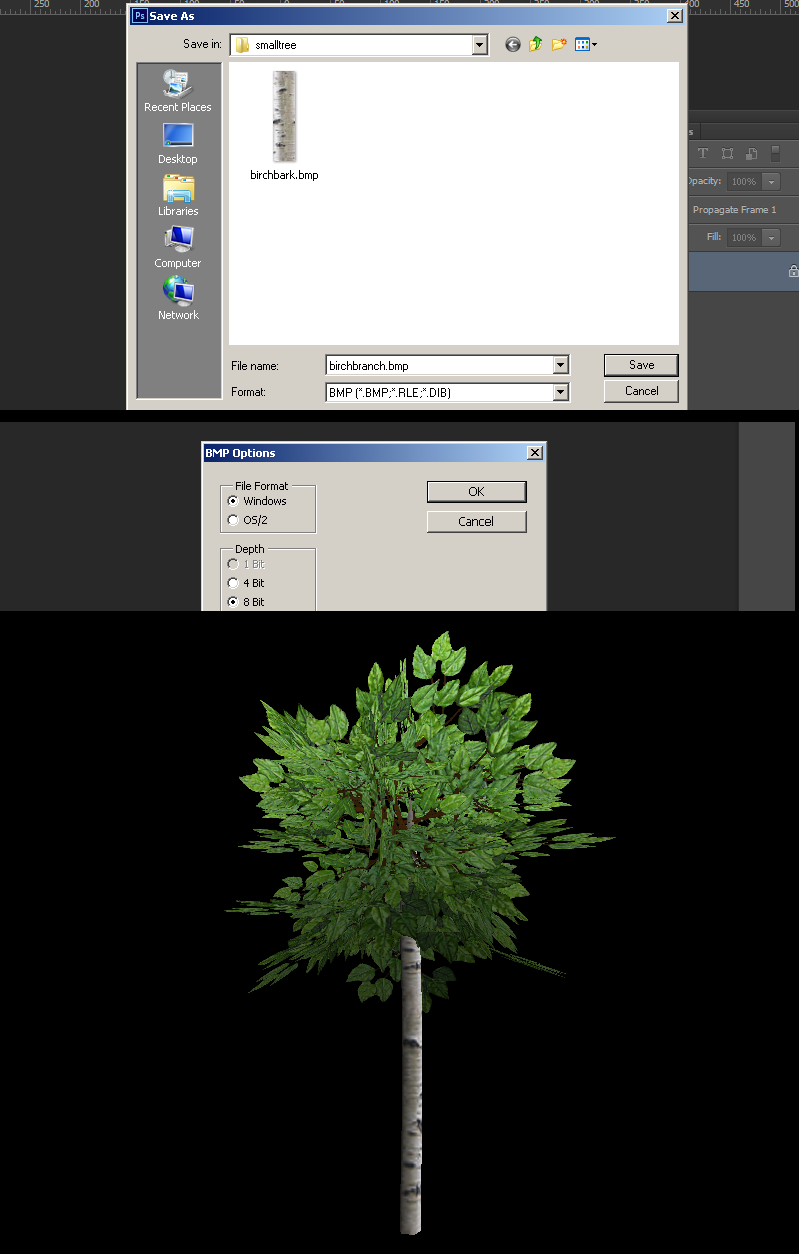
2)Save the image as .BMP format. A preview of a model that this texture belongs to.
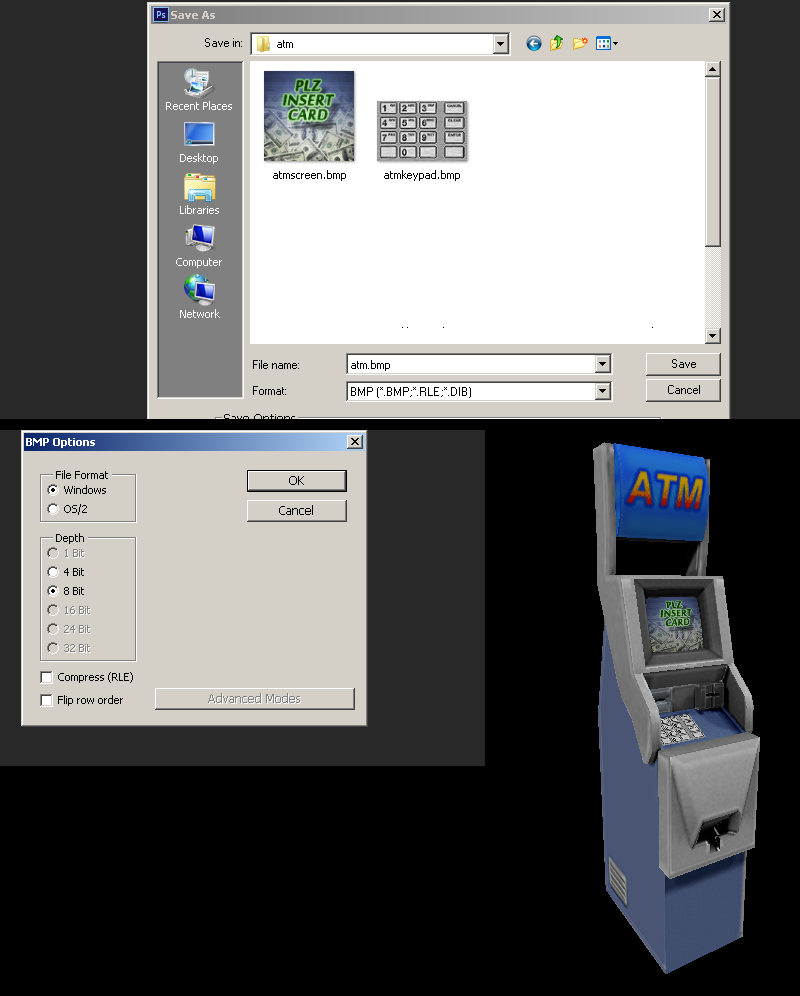
If you do not have Photoshop, the common option for making an indexed color image is "save as 8bit", "256 colors", or "indexed".
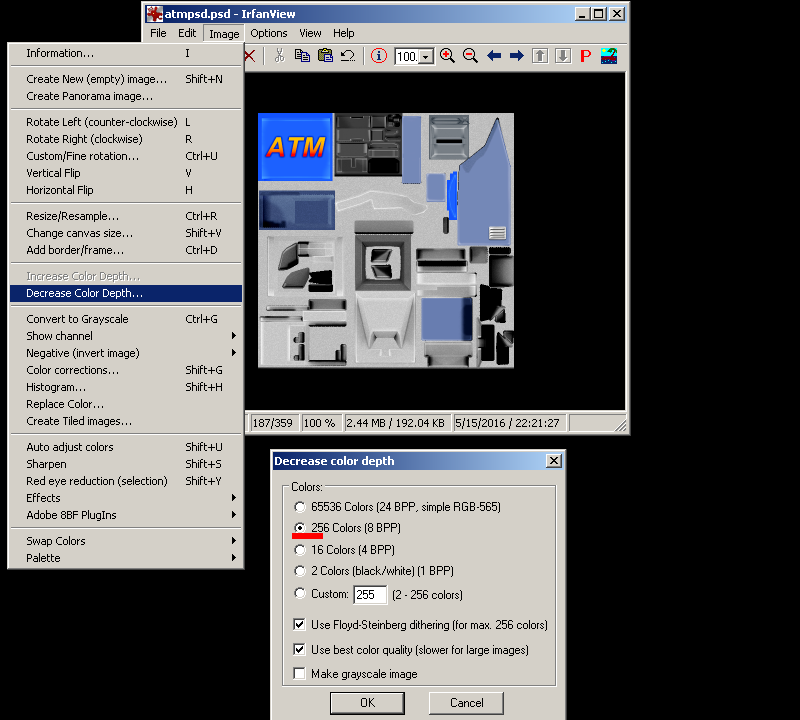
If your program is lacking in creating a decent palette or cannot save properly, you can save out your image as a 24bit BMP and use IRFANVIEW to do the 8bit conversion. I encourage to use this way if you are using Paint.net or GIMP because ive found that 8-bit conversion in those programs tend to not reproduce accurate results.
If you have a model that needs a smooth gradient and dithering is just not acceptable for you, there is a way of getting better color range by separating your textures by general color. This may require you to modify the UVs on your model to separate images/IDs.
If your model Has no special texture types and you are ready, click here to skip to 3D modelling package section
Special Texture Types
In standard GoldSrc there are three main special texture types and a final lesser known one:
Chrome: Simple environment map for metal like textures.
Additive: blending mode for effects like glows (pure black is hidden and lighter is visible)
Masked: Simple 1-bit transparency mask defined by a pallete index. This more commonly known as alphatest.
Flatshade: Ignores vertex normals shading all polygons uniformly without visible shadows. Best use for stylized pained shadows models/cartoon/anime style.
Sven-Coop & Xash3d have an additional flag called "Fullbright" however I cover that in a separate tutorial found here.
This section will describe the texture creation but the final compile flags will come in the later QC chapter.
The first special type is chrome. As described earlier, these are simple env maps that are used for metal or reflective type textures. Combined with additive they make for a glass look. The Chrome effects most notable examples are barneys helmet, the magnum revolver, the gauss gun, and the alien grunt armour.
A Chrome texture is created and indexed like as before but must be 64X64 pixels (Sven-Coop doesn't have this limit). When saving the BMP, the name "chrome" must be in the filename and the filename separated by a _ example: "CHROME_metalpipe.BMP". This way the compiler can flag the texture to use this effect.
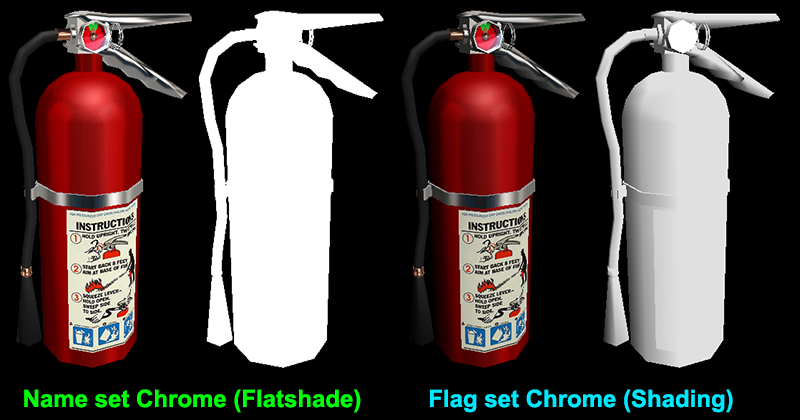
Here we see an example of the chrome effect. By default the "Chrome" effect is a flatshade style lighting which means while it can be lightened and darkened due to environment it does it uniformly and shows so real distinct shadowing.
There is a trick you can use to add some shadowing if desired. Instead of putting the "chrome" in the filename, use either the Sven Compiler with $texrendermode texture.bmp chrome or use Paranoia2 model viewer to set the chrome flag (and remove the flatshade flag if enabled.)
Since Chrome is a large topic I have created a new guide on chrome creation found here.
The second special type is "Additive". Additive light blending textures do not require any special things other than remembering that bright = opaque and black is fully invisible. All you need to do is make a simple texture starting with pure black canvas. Convert to pallete as before.
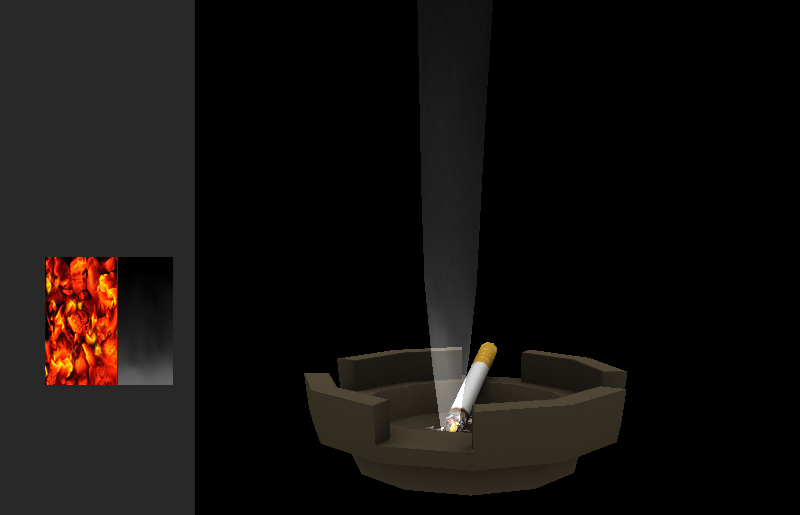
An important thing to know about Additive on models is that they are subject to local model lighting as well, so they will be darkened in low light conditions. They are not traditional fullbright in a sense, so if you do need a fullbright additive model in your map, create the model but do not use the additive compile flag and instead set the "additive" blend mode in hammer on the entity render mode. An example of this is the world&satellite hologram in the blast pit chapter. Sven Co-Op and Xash3d have the additional fullbright compile flag see here.
Setting the texrendermode flags in the QC file will come later in the compiling chapter.
Masked textures use a solid color that is the last color of the indexed palette as the transparent mask. This is a 1-bit form of transparency also known as "Alphatest" (so no semi-transparent/soft areas). Get your image ready by creating a selection from either lasso, quick select, pen, quickmask, ect. Create a clipping mask from this selection. In this case I have an existing transparency, so I will be creating a threshold for the alphatest.
In many cases if you need just a simple transparency that can be added by a threshold fill (no antialiasing selection/pencil tool) of pure blue ( RGB[0 0 255] or HEX:#0000ff ) and skip to step3
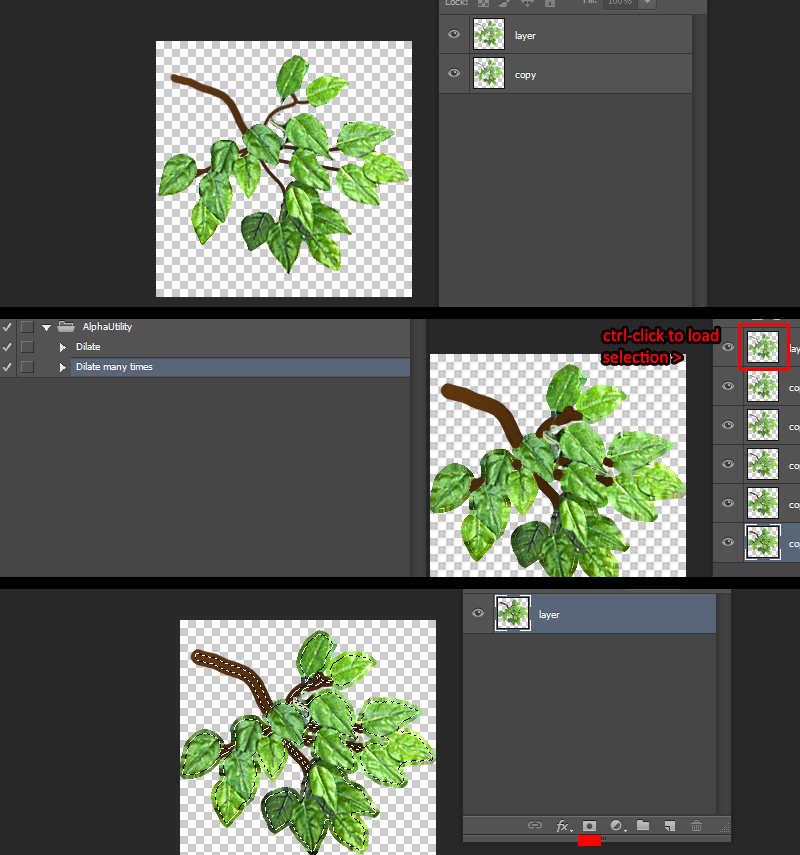
1)Use AlphaUtility" from this page which will pad out your transparency range (alternativley if you use Xnormal there is another plugin that does this Xnormal plugin use the "dialation..." filter.). This is done to keep a "fringe" from forming when we threshold the transparency. Next after running "Dialate many times" from the Actions, ctrl-click the topmost layer to load a selection. With the selection loaded merge visible layers then click the "layer mask" button on your layer window.
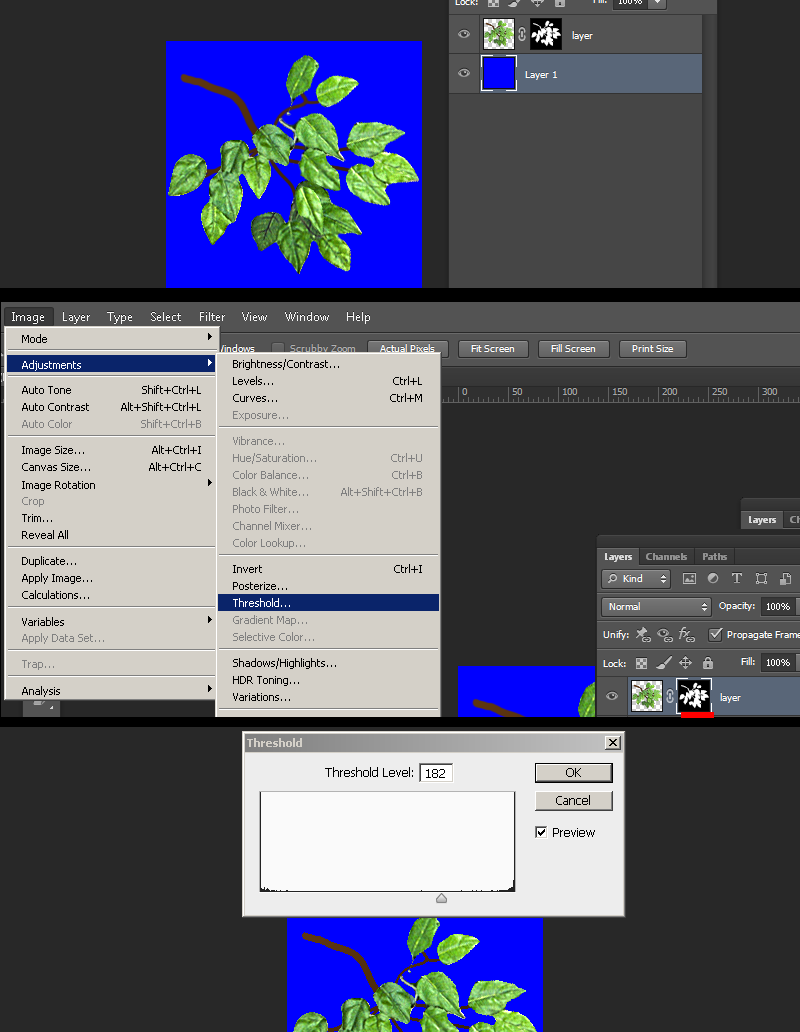
2) Create a layer below the masked image and then use the fill command (shift-F5) to fill that layer with pure blue ( RGB[0 0 255] or HEX:#0000ff ). select your clipping mask and go to Image > adjustments > threshold. You will now have a slider bar that you will adjust to set the hard threshold of your mask, this ensures you don't have any blending or aliasing which is bad for alphatest masked transparency. Do fine adjustments on this mask using the pencil tool (has hard edges to match requirements) with black or white.
NOTE: If your image touches the edge of the document, you should put at least a 1px border of the transparency, this is because any pixels touching any side of the document can sometimes "wrap" to the opposite side of the image.
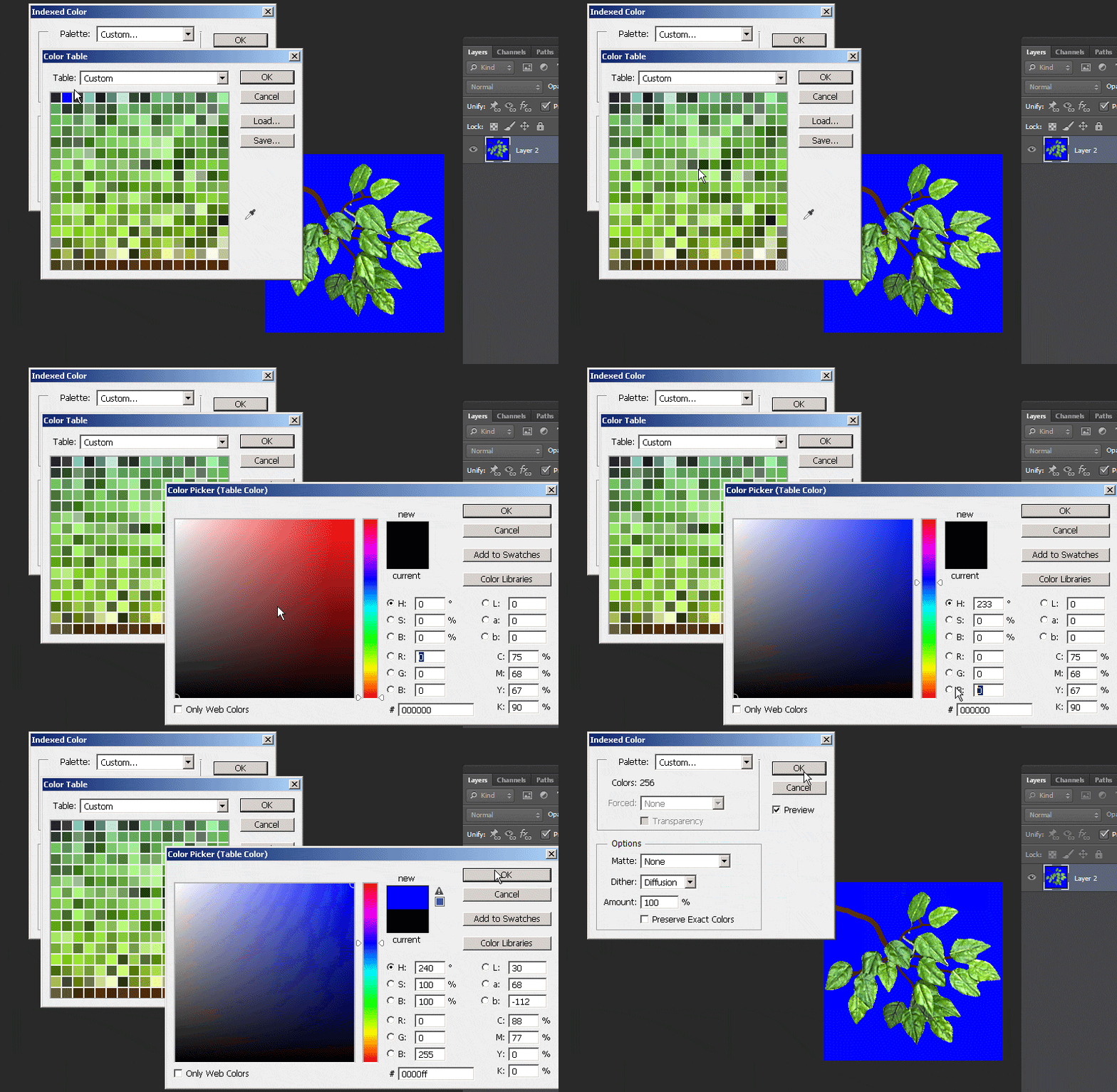
3) When finished convert the image to indexed color just like before, only after choosing your local palette, go to the rollout and choose "custom".
4)With the custom palette open ctrl-click the pure blue color to remove it from its index and re-add it to the final index by clicking the final slot and entering either RGB[0 0 255] or HEX #0000ff.
5)Save the image as BMP. An example of masked in action.
Setting the texrendermode flags in the QC file will come later in the compiling chapter.
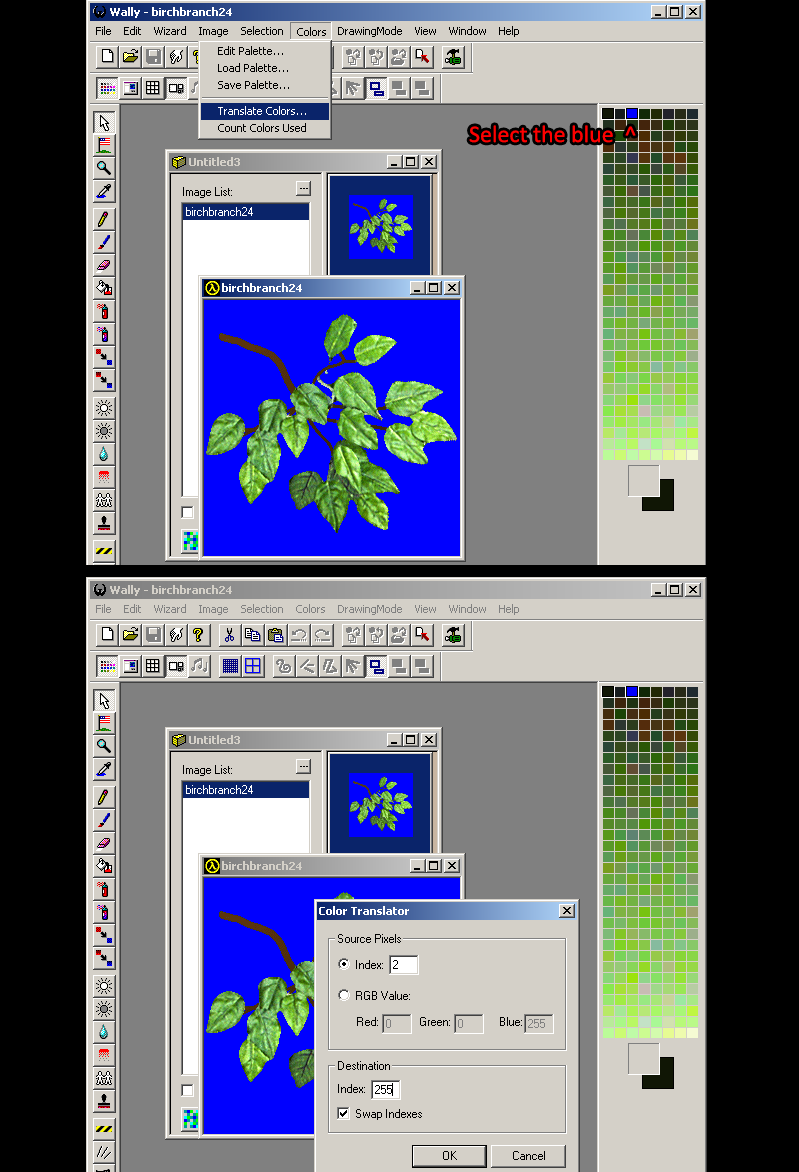
If you do not have Photoshop, swapping indexes will be a bit more difficult since IRFANVIEW is not able to do that, however we can use Wally to swap the indexes. Wally has 2 methods of swapping indexes, A: automatic blue detection by adding the wildcard "{"character to the front of the texture. B: Manual index location swapping.
A) Automatic detection method is done by adding the "{"character added to the front of your bmp name. Then opening wally, and going file>New wad ("Half-Life [WAD3] package") then drag and drop your bmp into the package window. Then verify if the blue has been swapped to the end of the pallete preview. Finally right-click to export the BMP.
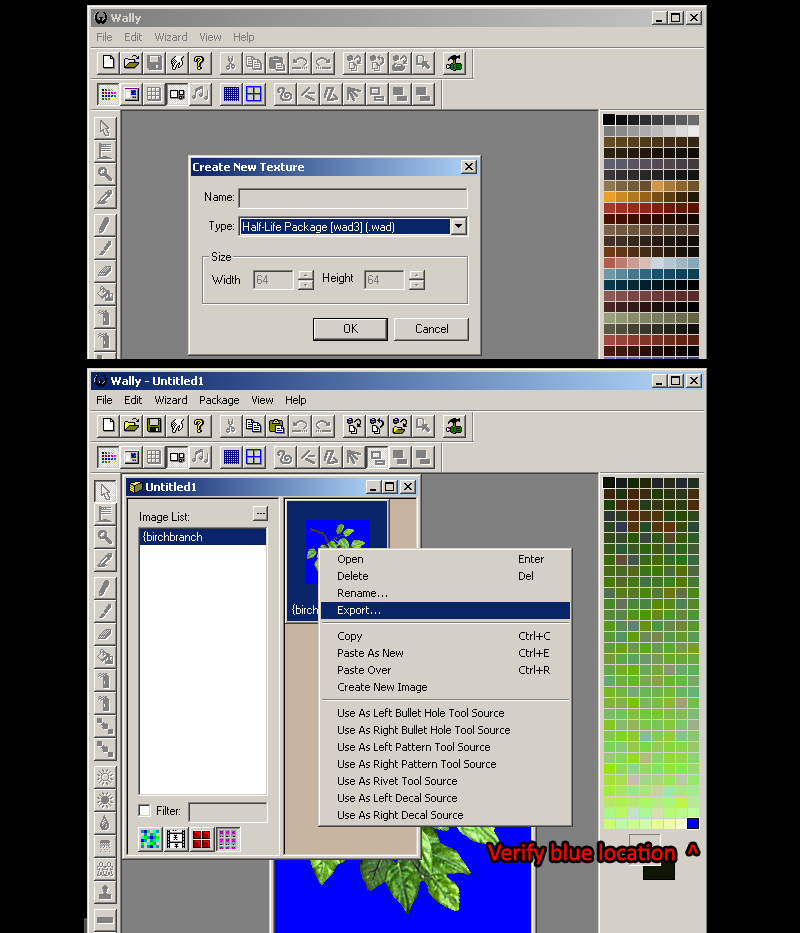
B) Manual detection method is done by opening wally, and going file>New wad ("Half-Life [WAD3] package") then drag and drop your bmp as before but this time click the blue color in the pallete preview and go to Color> Translate Colors... Put "Index 255" as the destination and then check "Swap Indexes". When done right click and export as before.